I started building CUTTKR because I needed a better way to keep track of my own edits. I had the files organized, but that didn’t tell me which cut was waiting on feedback or what I needed to deliver next. As I’ve been building out the team side, there’s another question to answer: who needs to see which work, and what do they need to do with it?
That’s where Workspaces and Dashboards come in. The team update that went out November 6 adds invitations and Dashboard access. The November 8 updates make it easier to find those controls and see which Dashboard is open. The useful part is being able to give someone a place to work without assuming they need everything else in the same Workspace.
The team and the work are two separate things
A Workspace is where the team is managed. Dashboards separate the work inside it. Each person has a Workspace of their own and can join someone else’s by invitation. Opening a different Dashboard changes which work you’re looking at. It doesn’t turn it into a separate team.
Say an editor is helping on a batch of social cuts. They need the deadlines, versions, and review status for those edits. There may be another set of projects in the same studio that has nothing to do with their assignment. In that example, I’d give them access to the social Dashboard and leave the other work out of it. There’s no need to build a second team just to separate those projects.
That also makes the current Dashboard label useful. If you switch between groups of work, it helps to see where you are before opening an edit or adding a new one. That should be something you can read at a glance instead of working it out from the project names.
A Dashboard for every edit would be a lot to manage. A better starting point is to separate a group of projects when the people working on them, or the access they need, are different. Keep the rest together if it helps the team see what’s coming next.
Choose what someone needs to do
The People & access screen lets an authorized person choose the Dashboards a teammate can use and assign a role for each one. Those choices answer two different questions. Which work should this person see? Once they can see it, what actions should they be able to take?
A Producer can manage project work and send client communications. An Editor can create and edit projects. Sending client communications for an Editor is optional and starts off. A Viewer can read and export but can’t edit or send client communications. Those Dashboard roles don’t make someone a Workspace administrator.
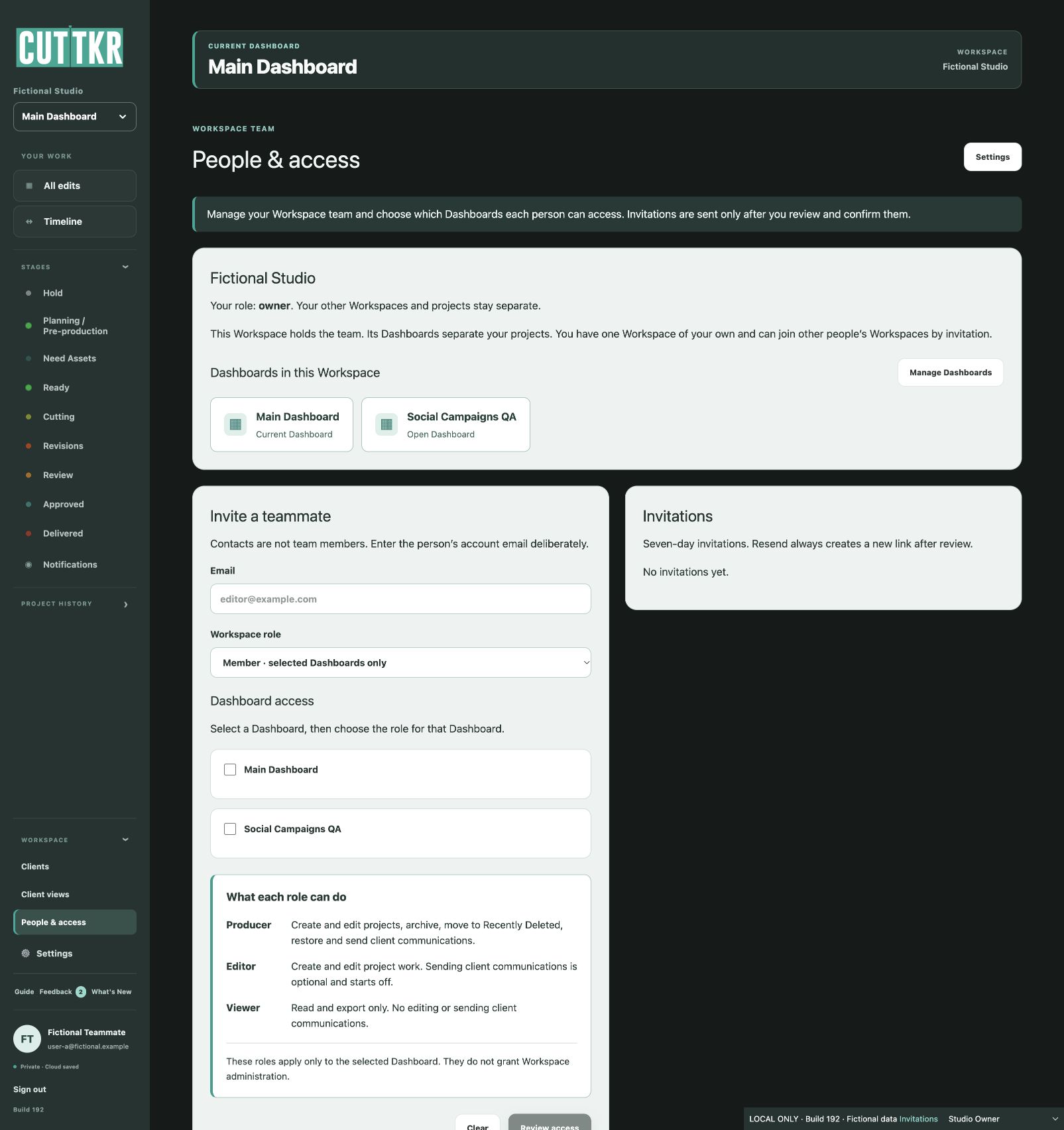
In practice, I’d start with the job the person needs to do. Someone who needs to check status might only need to view the work. Someone taking the next revision needs to be able to edit it. And being able to work on a cut doesn’t necessarily mean being the person who sends it out. That last decision is worth making on purpose.
Keep invitations deliberate
A contact in CUTTKR isn’t a teammate just because their name is in the system. Team invitations go through a review and confirmation step. That gives the person sending the invitation a chance to check the account email, the Workspace role, and which Dashboards they’re about to share.
The example above uses fictional data, and the roles describe how the feature works. This isn’t a claim that I’ve used it with a particular client or that it saved a specific amount of time. The idea is to make the assignment clear before somebody opens the Dashboard. The details of how a team divides the work still belong to the people doing it.
That’s the same reason I wanted CUTTKR to track the details around my editing and motion design work in the first place. I’d rather spend less time reconstructing where a project stands. With a team, it also helps to know who’s meant to take the next step and give them the right place to do it.