
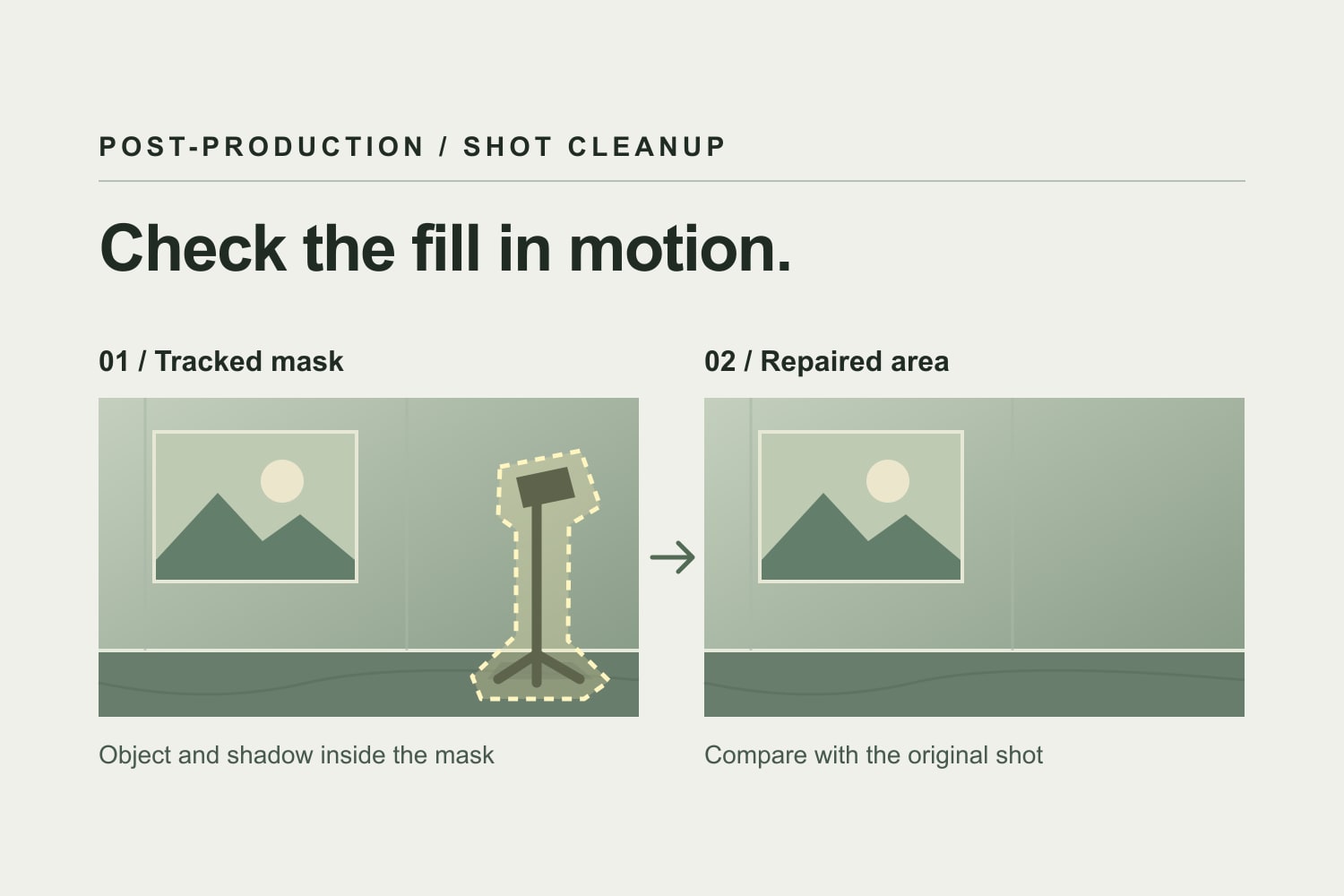
You’ve got the take you want. The performance works, the cut lands, and then you notice the edge of a light stand in the frame. You could punch in, but that might change a composition you already like. If there’s a clean plate, you could patch it. If there isn’t, now you’re deciding how much time to spend on something the viewer was never supposed to see.
Adobe introduced Generative Remove in Premiere (beta) at MAX on November 10. It’s meant for exactly that kind of cleanup. You mask and track the object on the timeline, then Premiere generates a fill for that part of the shot. The useful part is having another option right where you’re editing. The question is whether the result holds up once the shot is moving.
Know what the beta can handle
Adobe’s instructions say you can start with Object Mask or a shape mask. Track it, scrub through the clip, and adjust it before you hit Remove. Include any shadow or reflection you actually need gone. Premiere shows the credit cost before processing, and the generated version goes back on the timeline. You can try again or revert to the original.
The limits matter. As documented on November 10, the beta supports clips up to 10 seconds, from 480p through 1080p, at up to 30 fps. It doesn’t support HDR, 10-bit footage, or Team Projects. Adobe lists 40 generative credits per second, so an eight-second attempt would cost 320 credits at that rate. And the footage is processed in the cloud. Check what your client allows before using it on their material.
If you need a 4K or HDR master, don’t assume a repair from the beta is suitable for that finish. That might be the point where a crop, a clean plate, or a separate VFX pass makes more sense. Find that out before you spend time on a version that can’t go to delivery.
Pick a shot you can actually judge
A stand against a mostly plain wall is a reasonable first candidate. A reflection in moving glass, a logo on a wrinkling shirt, or an object that passes behind someone’s hair is a different job. The area you’re replacing has to keep making sense as the shot changes. When the edge of the mask touches something you want to keep, look closely at that part before and after the removal.
I’d still start by asking if the shot needs the repair at all. If a different take gets you the same performance, or a small reframe keeps the composition intact, that might be quicker and easier to check. And in an interview or documentary, ask whether the thing you’re removing changes what the footage shows. A stray light stand and an object that tells you something about the scene aren’t the same decision.
Review it in the cut, then check the export
A clean paused frame is a good start. Play the whole shot at speed. Does a line in the background shift as the camera moves? Does the grain go soft in one area? Does the patch pop when the subject crosses it? Then scrub those frames and compare them with the original. A shadow that no longer has anything casting it can be more distracting than the object was.
Watch it again with the shots on either side. If there’s a reverse angle or a wider shot, make sure the cleanup hasn’t introduced a continuity problem. Check it with the grade on, and check any other crop you’re delivering. A patch that barely registers in a wide cut can be right in the middle of a vertical version.
Once you’ve exported, watch that file too. It’s the one the client will see. Pay attention to the start and end of the repair and any frames you added after a trim. If the edit changes, check that the fix still covers the part of the shot you’re using.
Keep the original available and make a note of what changed if someone else is doing the finish. If the shot can’t pass that review without an explanation, I’d either fix it a different way or leave it alone. The goal is to keep the viewer in the scene. They shouldn’t be watching the wall.
That’s the kind of decision that’s part of the edit and the finish, not just a button press. You can see more of that side of my work in my editing and post-production portfolio.
Sources: Adobe MAX announcement and Adobe’s Generative Remove beta guide, both dated November 10, 2026.